We’ve all been there: a friend visits, asks for your WiFi password, and you suddenly realize you have absolutely no idea what it is. You set it up years ago, your devices connected automatically ever since, and now it’s a complete mystery. Sound familiar?
The good news is that your WiFi password isn’t gone – it’s just hiding. Whether you’re using Windows, a Mac, an iPhone, an Android phone, or you want to pull it straight from your router, this guide shows you exactly how to find your WiFi password in just a few steps.
No tech degree required. Let’s get into it.
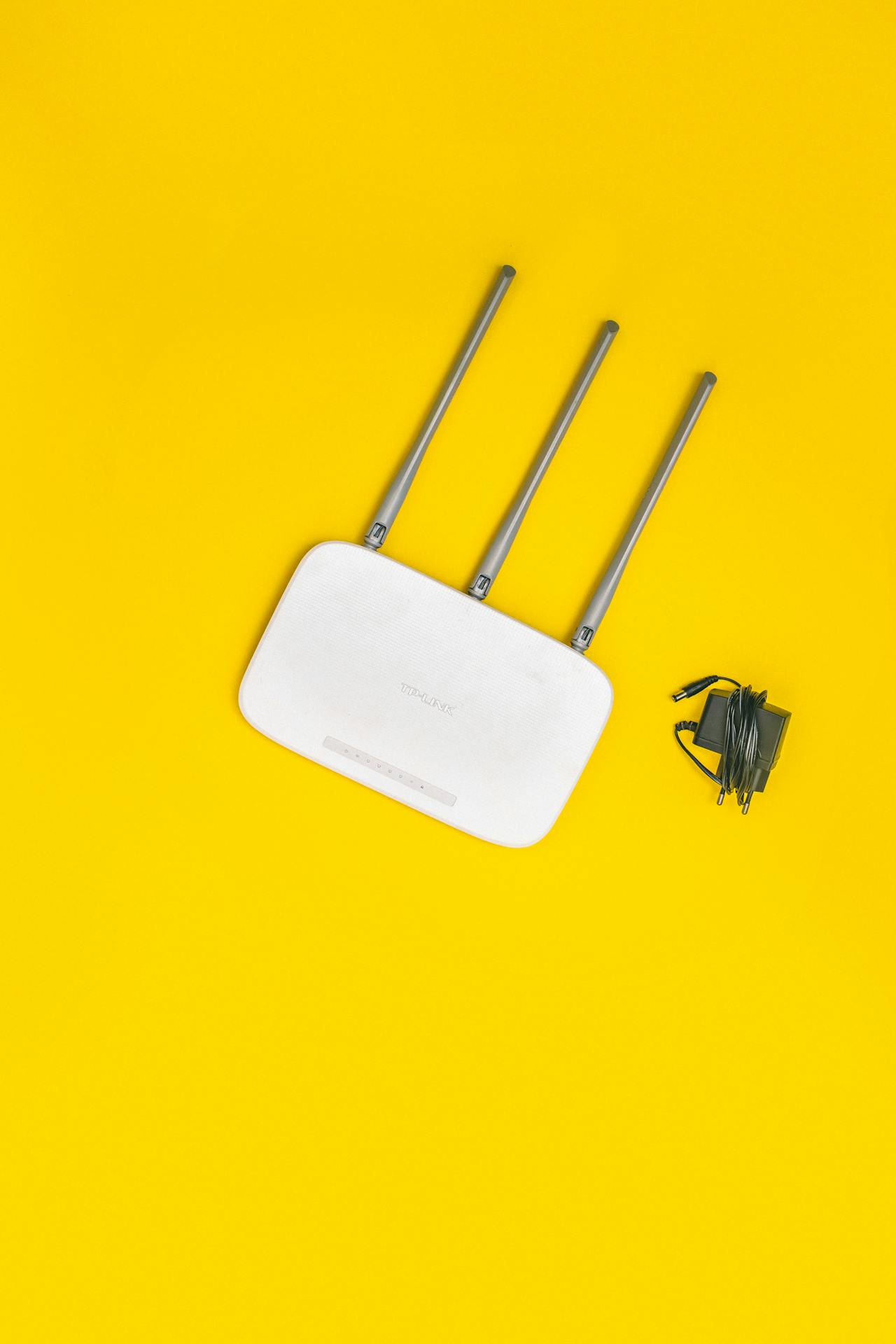
Table of Contents
- How to Find Your WiFi Password on Windows 10 & 11
- How to Find Your WiFi Password on Mac
- How to Find Your WiFi Password on iPhone & iPad
- How to Find Your WiFi Password on Android
- How to Find Your WiFi Password on Your Router
- How to Find WiFi Password Using Command Prompt or Terminal
- How to Find Your WiFi Password on a Chromebook
- What to Do If You Still Can’t Find Your WiFi Password
- How to Change Your WiFi Password
- Tips for Managing Your WiFi Password
- Frequently Asked Questions
How to Find Your WiFi Password on Windows 10 & 11
If your Windows PC is already connected to the WiFi network, finding the password takes less than a minute. Windows stores all your saved network passwords, and you can access them through the network settings.
Method 1: Through Network Settings (Easiest)
This is the simplest method and works on both Windows 10 and Windows 11:
- Click the WiFi icon in the bottom-right taskbar (the system tray).
- Right-click on the network you’re connected to and select “Properties” (in Windows 11) or click “Network & Internet settings” (in Windows 10).
- Scroll down to find the Network profile section.
- In Windows 11: Look for the WiFi password field and click the eye icon to reveal it.
- In Windows 10: Go to Status → Network and Sharing Center → Click your WiFi network name → Wireless Properties → Security tab → Check “Show characters” to reveal your password.
That’s it! Your WiFi password will be displayed in plain text.
Method 2: Via Control Panel (Windows 10)
If the quick method doesn’t work, you can go through the Control Panel:
- Press Windows key + R, type control panel, and press Enter.
- Go to Network and Internet → Network and Sharing Center.
- Click on your WiFi network name (shown in blue next to “Connections”).
- Click Wireless Properties.
- Click the Security tab.
- Check the box that says “Show characters”.
Your network security key (WiFi password) will appear in the “Network security key” field.
Method 3: Using Command Prompt
For power users who prefer the command line, you can find WiFi passwords using Command Prompt. We’ll cover this in detail in the Command Prompt section below.
How to Find Your WiFi Password on Mac
Mac stores all your saved passwords – including WiFi passwords – in a built-in app called Keychain Access. Here’s how to find your WiFi password on any Mac:
Method 1: Using Keychain Access (macOS Ventura and Earlier)
- Open Finder and go to Applications → Utilities → Keychain Access. (Or press Command + Space and search for “Keychain Access”.)
- In the search bar at the top right, type the name of your WiFi network.
- Double-click on the network name in the list.
- A window will appear – check the box next to “Show password”.
- Enter your Mac admin password when prompted.
- Your WiFi password will be revealed.
Method 2: Through System Settings (macOS Sonoma and Later)
Apple made it easier to find WiFi passwords in newer versions of macOS:
- Click the Apple menu → System Settings.
- Click Wi-Fi in the left sidebar.
- Find your network and click the Details button next to it.
- Click the password field and authenticate with Face ID, Touch ID, or your admin password.
- The password will be displayed.
Both methods are secure because they require admin authentication before revealing the password.
How to Find Your WiFi Password on iPhone & iPad
Starting with iOS 16, Apple added the ability to view saved WiFi passwords directly from your iPhone’s Settings app. If you’re on an older version of iOS, you’ll need to use a workaround.
Method 1: iOS 16 and Later (Direct Method)
- Open the Settings app.
- Tap Wi-Fi.
- Tap the (i) info icon next to the WiFi network you’re connected to (or any saved network).
- Tap the Password field.
- Authenticate using Face ID, Touch ID, or your passcode.
- Your WiFi password will be revealed.
Method 2: Share via QR Code (iOS 11+)
If you just need to share the password with someone nearby (rather than reading the password itself), you can use Apple’s built-in sharing feature:
- Make sure your iPhone is connected to the WiFi network.
- Ask your friend to go to Settings → Wi-Fi on their device and select the network.
- On your iPhone, a popup will appear asking if you want to “Share Password”.
- Tap Share Password.
This works silently – your friend’s device connects without either of you seeing the actual password.
Method 3: iOS 15 and Earlier (via iCloud Keychain on Mac)
On older iOS versions, you can’t directly view WiFi passwords on iPhone. Instead:
- Make sure your iPhone and Mac are signed in to the same Apple ID with iCloud Keychain enabled.
- On your Mac, open Keychain Access and search for the network name.
- Follow the Mac steps above to reveal the password.
How to Find Your WiFi Password on Android
Android also makes it possible to find saved WiFi passwords, though the exact steps vary slightly depending on your Android version and phone manufacturer.
Method 1: Android 10 and Later (QR Code Method)
- Open Settings on your Android device.
- Go to Network & internet → Wi-Fi.
- Tap on the WiFi network you’re connected to (or tap the gear/settings icon next to it).
- Tap “Share” or look for a QR code icon.
- Authenticate with your fingerprint, PIN, or pattern.
- A QR code will appear. Below the QR code, the WiFi password is displayed in plain text.
Method 2: Samsung Galaxy Devices (One UI)
Samsung has a slightly different interface:
- Go to Settings → Connections → Wi-Fi.
- Tap the gear icon next to your WiFi network.
- Tap QR code.
- The password appears below the QR code image.
Method 3: Older Android Devices (Android 9 and Earlier)
Older Android versions don’t natively show saved passwords. Your options are:
- Check your router (covered in the next section).
- Use a file manager app with root access to browse the
/data/misc/wifi/directory and open thewpa_supplicant.conffile (requires root access). - Use a third-party app like WiFi Password Show (also requires root).
For most users, the best solution for older Android devices is to check the router directly.

How to Find Your WiFi Password on Your Router
Your router is the ultimate source of truth for your WiFi password. Even if you can’t access it on any of your devices, you can always log into your router’s admin page to find or reset the password.
Step 1: Find Your Router’s IP Address
To access your router’s settings, you need to know its IP address. The most common router IP addresses are:
- 192.168.1.1
- 192.168.0.1
- 10.0.0.1
- 192.168.2.1
Not sure which one yours is? Here’s how to find it:
On Windows: Press Windows + R, type cmd, and run ipconfig. Look for “Default Gateway” – that’s your router’s IP.
On Mac: Go to System Settings → Network → select your WiFi → Details → look for “Router.”
On iPhone: Go to Settings → Wi-Fi → tap the (i) icon → look for “Router.”
Step 2: Log Into Your Router
- Open any web browser on a device connected to the network.
- Type your router’s IP address into the address bar (e.g.,
192.168.1.1) and press Enter. - A login page will appear. Enter your router’s admin username and password.
Don’t know your router’s admin credentials? Check the sticker on the bottom or back of your router – the default username and password are usually printed there. Common defaults are:
- Username: admin / Password: admin
- Username: admin / Password: password
- Username: admin / Password: (blank)
Step 3: Find the WiFi Password
- Once logged in, look for a section called Wireless, Wi-Fi Settings, or WLAN.
- Under that section, find Security or WPA/WPA2 Key.
- Your WiFi password (also called the network key or passphrase) will be displayed there.
The exact navigation varies by router brand (Netgear, TP-Link, ASUS, Linksys, etc.), but the general structure is similar for all.
Check the Router’s Physical Label
Before you go through all of the above, check the simplest option first: look at the physical label on your router. Most routers have a sticker on the bottom or back that includes:
- The network name (SSID)
- The default WiFi password
- The router admin URL and credentials
If you’ve never changed your WiFi password, this is what it still is. If you have changed it, you’ll need to log into the router admin panel as described above.
How to Find WiFi Password Using Command Prompt or Terminal
For those who like the command line, both Windows and Mac offer ways to retrieve saved WiFi passwords through a terminal.
Windows: Using Command Prompt
- Press Windows key + S and search for cmd.
- Right-click on Command Prompt and select “Run as administrator”.
- To see all saved WiFi networks, type:
netsh wlan show profilesand press Enter. - To see the password for a specific network, type:
netsh wlan show profile name="YourNetworkName" key=clearand replaceYourNetworkNamewith your actual network name. - Look for the “Key Content” field under Security settings – that’s your WiFi password.
This method also lets you see passwords for all previously connected WiFi networks, not just the current one – very handy if you’re trying to recover an old password.
Mac: Using Terminal
- Open Terminal (Applications → Utilities → Terminal, or search with Spotlight).
- Type the following command, replacing “YourNetworkName” with your WiFi network name:
security find-generic-password -wa "YourNetworkName" - Press Enter and enter your Mac admin username and password when prompted.
- The WiFi password will be printed in the terminal output.
Linux: Using Terminal
On Linux systems, WiFi passwords are stored in plain text in configuration files:
- Open Terminal and type:
sudo cat /etc/NetworkManager/system-connections/YourNetworkName.nmconnection - Enter your root password when prompted.
- Look for the line starting with
psk=– the value after the equals sign is your WiFi password.
How to Find Your WiFi Password on a Chromebook
Chromebooks don’t let you view saved WiFi passwords directly through the interface – it’s a known limitation. However, there are a couple of workarounds:
Method 1: Check the Router
The most reliable option is to log into your router’s admin panel as described in the router section above.
Method 2: Use Chrome Internals
Open Chrome and go to chrome://network-internals/#wifi. Under “Reset stored credentials,” you can sometimes find network details, though this doesn’t always show the password in plain text.
What to Do If You Still Can’t Find Your WiFi Password
If none of the above methods work, don’t panic. You still have options:
Reset Your Router to Factory Settings
This is the nuclear option, but it works. Most routers have a small reset button (usually a pinhole) on the back:
- Use a paperclip or pin to press and hold the reset button for 10-30 seconds.
- The router will reboot and reset to its factory default settings.
- Your WiFi network will revert to the default name and password printed on the router’s label.
Important: A factory reset will also clear all your custom settings (port forwarding, parental controls, custom DNS, etc.). Only do this if you’re okay with reconfiguring your router.
Call Your Internet Service Provider (ISP)
If your router was provided by your ISP (like Comcast, AT&T, or Spectrum), their customer support can often reset your router remotely or provide you with the default credentials.
Check Your Email or Password Manager
Did you ever email your WiFi password to someone? Search your email for terms like “wifi password,” “network key,” or the name of your network. Similarly, check your password manager (1Password, Bitwarden, LastPass, etc.) – you may have saved it there at some point.
How to Change Your WiFi Password
Once you’ve found your WiFi password, it’s a good idea to change it if it’s weak or if too many people have access to it. Here’s how:
- Log into your router’s admin panel (see the router section above).
- Go to Wireless → Security (exact wording depends on your router brand).
- Find the WPA/WPA2 Passphrase or Network Key field.
- Delete the old password and type a new one.
- Click Save or Apply.
After changing the password, all devices that were connected will be disconnected. You’ll need to reconnect them using the new password.
Tips for a Strong WiFi Password
- Use at least 12 characters.
- Mix uppercase and lowercase letters, numbers, and symbols.
- Avoid common words, your name, or your address.
- Use a passphrase (like
Coffee!Morning$Blue42) – it’s both strong and easier to remember. - Save it in a password manager so you never forget it again.
Tips for Managing Your WiFi Password
Once you’ve tracked down your password, here are some smart habits to help you never lose it again:
1. Save It in a Password Manager
Apps like Bitwarden (free), 1Password, or your browser’s built-in password manager are perfect for storing WiFi credentials. They’re encrypted, accessible from any device, and searchable.
2. Create a Guest Network
Instead of giving out your main WiFi password to visitors, set up a guest network on your router. Guest networks are isolated from your main network (keeping your devices secure) and you can give them a simple, easy-to-share password or even reset it regularly.
3. Make a QR Code for Your WiFi
You can create a printable QR code that people can scan to connect to your WiFi automatically – no password typing needed. Sites like qifi.org let you generate one for free. Print it and put it on your fridge or router for guests to use.
4. Note It on the Router
If you change your router’s default password, write the new one on a small sticker and put it on the router. This is low-tech but 100% reliable as long as no one malicious has physical access to your home.
5. Use Your Router App
Most modern routers come with an official companion app (like ASUS Router, Netgear Nighthawk, TP-Link Tether, or Eero). These apps often make it easy to view and share your WiFi password directly from your phone.
Wrapping Up
Finding your WiFi password doesn’t have to be a headache. Depending on which device you have handy, you’re likely just a few taps or clicks away from recovering it. Here’s a quick recap of the best methods:
- Windows 10/11: Network settings or Command Prompt
- Mac: Keychain Access or System Settings
- iPhone (iOS 16+): Settings → Wi-Fi → tap the (i) icon
- Android (10+): Settings → Wi-Fi → tap and share via QR code
- Router: Log into admin panel or check the physical label
Going forward, save your WiFi password in a password manager, and consider setting up a guest network so you don’t have to share your main credentials with every visitor. Your future self will thank you.
Frequently Asked Questions
Can I find my WiFi password without being connected to the network?
If you’re not connected to the network, your devices won’t have the password stored locally. Your best option is to check the router’s physical label (for the default password) or log into the router’s admin panel from a device that is connected (even via ethernet cable).
Is it safe to share my WiFi password?
Sharing your WiFi password with trusted family and friends is generally fine. However, avoid sharing it with people you don’t know well, as they can access your local network and potentially see your connected devices. For guests, use a separate guest network.
How do I find the WiFi password on an iPhone without iOS 16?
On iOS 15 and earlier, you can’t view WiFi passwords directly on iPhone. Your best options are: check the router label, log into the router’s admin page, or find it on a Mac using Keychain Access (if you use the same Apple ID with iCloud Keychain).
Can I find WiFi passwords for networks I’ve connected to before but am not currently connected to?
Yes! On Windows, the Command Prompt method (netsh wlan show profiles) shows all previously saved networks. On Mac, Keychain Access also stores all past WiFi passwords. On iPhone and Android, past networks are visible in Wi-Fi settings, and you can view their passwords if your OS supports it.
What is the difference between a WiFi password and a router admin password?
These are two different passwords. The WiFi password (also called the network key or WPA2 passphrase) is what you enter on devices to connect to the internet. The router admin password is used to log into the router’s settings page. Both are usually printed on the router label by default, and both can be changed independently.
My WiFi password has special characters – is that normal?
Yes, absolutely. Special characters like !, @, #, and $ in WiFi passwords are completely normal and make your network more secure. Some older devices may struggle with certain special characters, but most modern devices handle them just fine.
How often should I change my WiFi password?
It’s a good practice to change your WiFi password every 1-2 years, after a security incident, when you change your ISP, or when you’ve shared it with someone you no longer want on your network.
Can my ISP see my WiFi password?
Your ISP can see your network traffic (which websites you visit), but they cannot see your WiFi password itself. Your WiFi password is used locally to connect devices to your router – it never travels across the internet to your ISP’s servers.