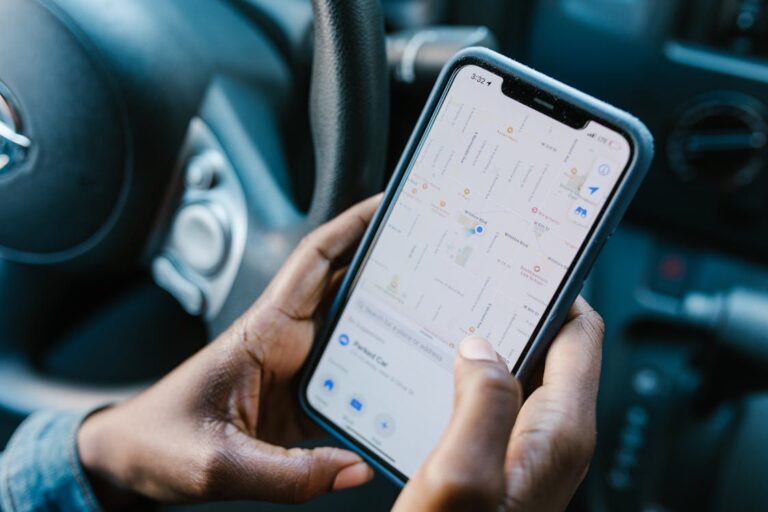
You reach into your pocket and it’s gone. That sinking feeling hits instantly – your phone is lost. Whether you left it at a restaurant, dropped it somewhere in the house, or it was stolen, knowing how to find a lost phone can be the difference between a minor inconvenience and a major crisis.
The good news? Both iPhones and Android phones have powerful built-in tools that can locate your device in minutes – as long as you act quickly. In this complete guide, you’ll learn every method available, from built-in tracking apps to third-party tools, plus what to do if your phone is completely offline.
Before You Start: Act Fast
Time is critical when you lose a phone. Here’s what to do in the first five minutes:
1. Stay calm and retrace your steps. Before assuming the worst, think about where you last used your phone. Call it from another device – the ringer might lead you straight to it.
2. Log in to your tracking account immediately. Whether you use an iPhone or Android, open a browser on another device and log in to your account (iCloud.com or google.com/android/find) right away. The faster you act, the better chance you have of finding it while it’s still on and connected to the internet.
3. Check if “Find My” or Find My Device was enabled. These features must be turned on BEFORE you lose your phone to work. If they were, you’re in luck – keep reading for exact steps.
4. Don’t panic-erase yet. Many people immediately hit “Erase Device” out of panic. Don’t do this unless you’re certain the phone has been stolen and you’ve given up on recovering it. Erasing your phone disables tracking.
How to Find a Lost iPhone (Using Find My)
Apple’s Find My app is one of the most powerful phone-tracking tools available. If you have an iPhone running iOS 13 or later, Find My uses a massive network of Apple devices to locate your phone even when it’s offline.
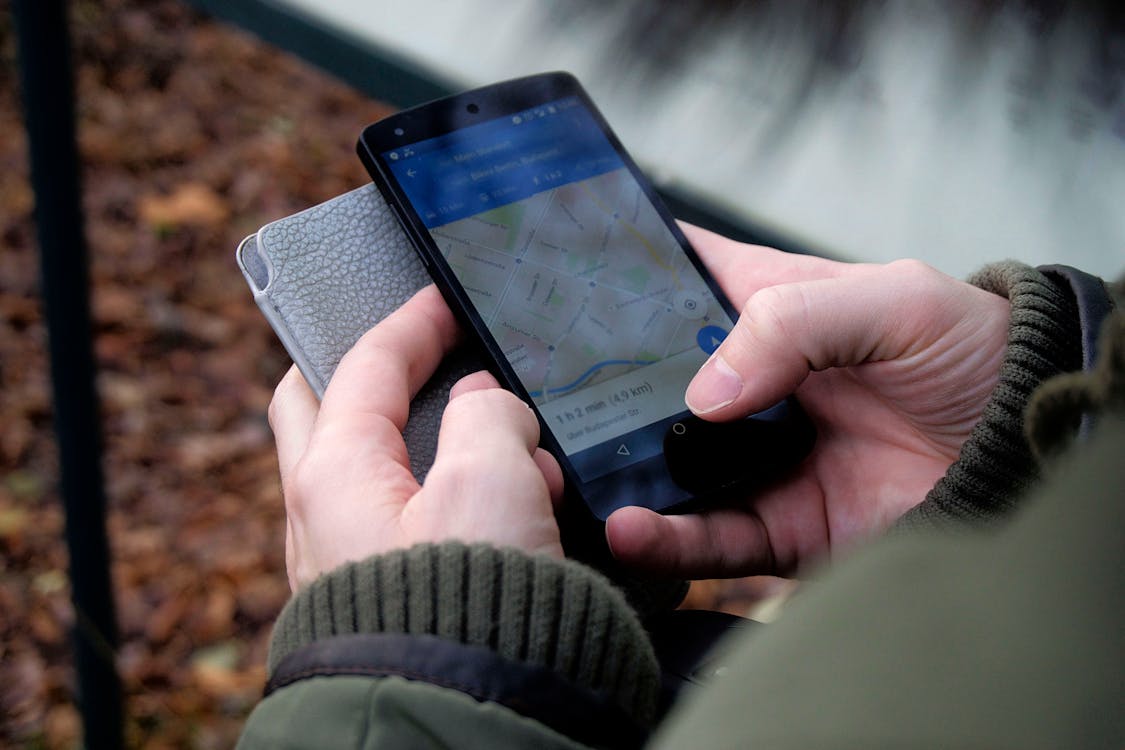
Method 1: Use iCloud.com on a Browser
This is the quickest method and works from any computer or device.
- Open a browser and go to icloud.com
- Sign in with your Apple ID and password
- Click Find My iPhone (or “Find My” on newer versions)
- Click All Devices at the top of the map
- Select your lost iPhone from the list
- A map will show the device’s last known location
From here, you have three options:
- Play Sound: Makes your iPhone emit a loud beeping sound for 2 minutes, even if it’s on silent. Perfect if it’s nearby.
- Lost Mode: Locks your phone with a passcode, displays a custom message with a callback number, and continues tracking the location.
- Erase iPhone: Remotely wipes all data. Only use this as a last resort – once erased, you can no longer track its location.
Method 2: Use Another iPhone or iPad with the Find My App
If you have access to another Apple device logged into the same Apple ID, or a family member’s device:
- Open the Find My app
- Tap the Devices tab at the bottom
- Select your lost iPhone from the list
- Tap Play Sound, Directions, or Mark as Lost
The “Directions” feature will open Apple Maps and give you turn-by-turn navigation to your phone’s location. This is incredibly useful if you left it at a public location.
Method 3: Ask Siri to Find Your Phone
If you have an Apple Watch, HomePod, or another Apple device signed into the same Apple ID, just say: “Hey Siri, find my iPhone.” Siri will ping your phone and make it play a sound.
What If Find My Was Disabled?
If Find My was turned off (or you never set it up), your tracking options are limited. Check if your iPhone was backed up to iCloud recently – you may be able to identify the last location from photos with geotags. You can also check Google Maps Timeline if you ever used Google Maps on the device.
How to Find a Lost Android Phone (Using Find My Device)
Google’s Find My Device is the Android equivalent of Apple’s Find My. It comes pre-installed on most Android phones and works seamlessly as long as the phone is signed into a Google account and has location services enabled.
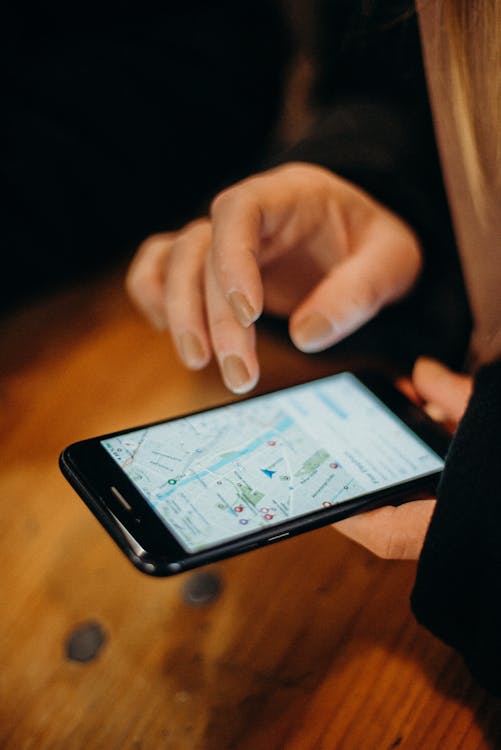
Method 1: Use Google’s Find My Device Website
- On any device, go to google.com/android/find
- Sign in with the Google account linked to your lost Android phone
- If you have multiple devices, click the device name at the top to switch to your lost phone
- A map will display the phone’s current or last known location
Available options include:
- Play Sound: Rings the phone at full volume for 5 minutes, even if it’s on silent or vibrate.
- Secure Device: Locks the phone with your PIN, pattern, or password, and lets you display a message on the lock screen.
- Erase Device: Factory resets the device remotely. As with iPhone, only do this as a last resort.
Method 2: Search on Google
Here’s a quick trick many people don’t know: simply open Google and search “find my phone” while logged into your Google account. Google will show a card at the top of the search results with a map and options to play a sound or locate the device. It’s the fastest method if you’re already in a browser.
Method 3: Use the Find My Device App (on Another Android Phone)
- Download the Find My Device app on a friend’s Android phone
- Tap Sign in as guest
- Enter your Google account credentials
- Your lost device will appear and you can trigger all the same options
Method 4: Use Google Assistant
If you have a Google Home speaker, Nest device, or another Android device with Google Assistant, say: “Hey Google, find my phone.” Google will ring your phone, even if it’s on silent.
Samsung Galaxy Users: Use Samsung Find My Mobile
If you own a Samsung Galaxy device, you have an additional option: Samsung’s Find My Mobile service. Go to findmymobile.samsung.com, sign in with your Samsung account, and you can locate, ring, lock, or wipe your device.
How to Find a Lost Phone That’s Offline or Dead
This is where things get trickier – but not hopeless. Here’s what happens when your phone is offline:
iPhone: Find My Network Works Offline
Apple has built an impressive solution for offline tracking. When your iPhone’s battery dies or it goes offline, it activates a special Bluetooth mode. Nearby Apple devices (with hundreds of millions in Apple’s Find My network) can silently detect your phone’s Bluetooth signal and relay its location back to you – all anonymously and encrypted.
This means even a dead iPhone can sometimes be located if it was near other Apple devices. To see the last location:
- Open Find My on iCloud.com or another Apple device
- Select your device – if it’s offline, you’ll see “Offline” next to the name
- The map will show the last known location before it went offline
- Look for a “Notify When Found” option – this will alert you when the phone comes back online
Android: Last Known Location
Google’s Find My Device will show your Android phone’s last known location before it went offline. This is often enough to narrow down where you lost it.
Google also offers a feature called “Store recent location” that saves your phone’s last location just before the battery runs out. To enable this: go to Settings > Security > Find My Device, then enable “Store recent location.”
Check Google Maps Timeline
If your phone was signed into a Google account with Location History enabled, Google Maps Timeline may show you exactly where the phone was throughout the day. Go to google.com/maps/timeline and look at today’s history. This can reveal where you were when you last had your phone.
Check for Recent Photos or App Activity
Log into your cloud accounts (Google Photos, iCloud Photos) and look for the most recently synced photo. The geolocation metadata embedded in photos can show you exactly where it was taken – often within meters of where you lost the phone.
What to Do If Your Phone Was Stolen
If you believe your phone was stolen (not just misplaced), take these steps immediately:
Step 1: Enable Lost Mode / Secure Device
Don’t erase it yet. First, enable Lost Mode (iPhone) or Secure Device (Android). This locks the phone, prevents unauthorized access, and keeps location tracking active. You can display a message like “This phone is stolen. Reward for return.” with your contact number.
Step 2: File a Police Report
Contact your local police department and file a theft report. You’ll need: your phone’s IMEI number (find it on your original box, carrier account, or by dialing *#06#), the phone’s make, model, and color, and any location data you’ve gathered. The IMEI number is critical – carriers can blacklist a stolen phone using the IMEI, making it impossible to activate on any network.
Step 3: Contact Your Carrier
Call your mobile carrier immediately to suspend service (preventing unauthorized calls and data usage), report the phone stolen and request IMEI blacklisting, and ask about insurance claims if you have phone insurance.
Step 4: Change Your Passwords
If you believe someone has accessed your phone, immediately change passwords for your email, banking apps, social media, and any other sensitive accounts. Enable two-factor authentication wherever possible.
Step 5: Remote Erase (Last Resort)
Once you’ve gathered all possible location data and filed your police report, and you’re confident you won’t recover the phone, remotely erase it to protect your personal data.
Third-Party Apps to Track a Lost Phone
Beyond the built-in tools, several third-party apps offer enhanced tracking features. These are particularly useful if you set them up before losing your phone:
Life360
Life360 is a family location sharing app that provides real-time GPS tracking, location history, and even crash detection. It works on both iPhone and Android and is popular for keeping track of family members’ devices. The free plan covers basic location sharing; premium plans add more location history and alerts.
Google Family Link
If you manage a child’s Android device through Google Family Link, you can always see the device’s location from the Family Link app on your own phone. This is useful for parents who want to track a child’s lost or stolen phone.
Prey Anti-Theft
Prey is a dedicated anti-theft app for phones, tablets, and laptops. It lets you track your device, take remote screenshots, activate the camera remotely, and trigger alarms. The free plan covers up to 3 devices, which makes it a great option for most individuals.
Cerberus (Android)
Cerberus is a powerful anti-theft app for Android that survives factory resets if installed as a system app. Features include GPS tracking, remote locking, taking photos of anyone who enters the wrong PIN, and recording audio. It’s one of the most comprehensive options available for Android.
How to Prevent Losing Your Phone Again
Finding your phone once is stressful. Finding it twice is avoidable. Here’s how to make sure you’re prepared:
Enable Tracking Before You Lose It
iPhone: Go to Settings > [Your Name] > Find My > Find My iPhone. Make sure “Find My iPhone,” “Find My Network,” and “Send Last Location” are all turned ON.
Android: Go to Settings > Security > Find My Device and make sure it’s enabled. Also go to Settings > Location and ensure Location is ON.
Use a Bluetooth Tracker
Attach an Apple AirTag to your phone case or keep it in your bag. AirTags use Apple’s Find My network and can locate your item with precision tracking. For Android users, Google’s Find My Device network supports Bluetooth tracker tags from brands like Chipolo and Motorola.
Always Lock Your Phone
Set a strong PIN, password, or biometric lock (Face ID or fingerprint). This protects your data if your phone falls into the wrong hands. Never use simple codes like “1234” or “0000.”
Back Up Your Data Regularly
Even if you can’t recover the phone, you can recover your data. Enable automatic backups on iPhone via Settings > iCloud > iCloud Backup, or on Android via Settings > Google > Backup.
Note Your IMEI Number
Write down or photograph your IMEI number and store it somewhere safe (not on your phone). You can find it by dialing *#06# on any phone, or on the original box. This is essential for police reports and carrier blacklisting.
Use a Bright or Distinctive Phone Case
A bright, distinctive phone case makes your phone harder to lose in plain sight and easier to spot if you drop it. Avoid all-black or generic cases that blend into any surface.
Last Resort: Contacting Your Carrier
If all tracking methods fail, your mobile carrier may have additional options. Ask about: the last tower ping (carriers log which cell towers your phone last connected to and can share this with law enforcement), insurance claims (if you have phone insurance through your carrier like Asurion or AppleCare+, a lost or stolen phone may be eligible for a replacement), and temporary suspension (suspend your line to prevent unauthorized charges while you search).
Frequently Asked Questions
Can I find a lost phone if location is turned off?
It’s very difficult. If location services were disabled, Google Find My Device and Apple Find My won’t be able to show real-time location. However, Apple’s Find My network may still work via Bluetooth signals from nearby Apple devices. Your last option is to check your Google Maps Timeline for the last recorded location before location was turned off.
Can I find my phone if it’s been factory reset?
Unfortunately, no. A factory reset removes your Google or Apple account from the device, which disables tracking. This is one reason remote tracking apps like Cerberus (which can survive a factory reset when installed as a system app) are popular.
How accurate is Find My Device / Find My iPhone?
When connected to GPS and Wi-Fi, accuracy is typically within 3–10 meters (10–30 feet). In areas with poor GPS reception (indoors, underground), it may rely on Wi-Fi triangulation or cell tower data, which can be accurate to within 100–300 meters. Apple’s Precision Finding feature (on iPhone 11 and later with an AirTag) can pinpoint location to within inches using Ultra-Wideband technology.
What if someone turned off my phone?
If someone turns off your phone, GPS tracking stops. However, iPhones running iOS 15 or later can still be tracked even when powered off, using a low-power Bluetooth beacon that stays active for up to 5 hours after shutdown. For Android, you’ll see the last known location before the phone was switched off.
Can police track a stolen phone?
Yes, police can work with carriers to track a stolen phone using cell tower data and IMEI number, especially if you provide a theft report. However, this process takes time and typically requires an active investigation. Your fastest option is always to use Find My Device or Find My yourself first.
How do I find a lost phone without internet?
Without internet access on another device, you can still ring the phone (using another phone to call it), use Google Assistant or Siri on a smart home device, or check your last known location via cached Google Maps data. If the lost phone itself is offline, you’ll need to rely on the last known location shown in tracking apps.
Does Find My iPhone work if the phone is dead?
Yes – iPhones with iOS 15 or later and A12 Bionic or newer chips (iPhone XS/XR and later) can broadcast a Bluetooth signal for a short time even after the battery dies. Nearby Apple devices can pick up this signal and relay the location anonymously through Apple’s Find My network.
Conclusion
Losing a phone is stressful, but with the right tools and a calm, methodical approach, most people find their device within minutes. The key takeaways: act fast, use the built-in tracking tools (Find My for iPhone, Find My Device for Android), avoid erasing the device unless absolutely necessary, and report theft to your carrier and police with your IMEI number.
Even more importantly, set up these tracking tools right now – before you ever need them. It takes two minutes and could save you from a major headache down the road.
Looking for more guides? Check out our articles on how to find your IP address and how to find your WiFi password.